SODOTO — User Manual
Marc Pierson and Claude Opus 5.5 · September 2026, updated October 2026
A practical guide for the people who use SODOTO: learners earning a credential, mentors witnessing and recording their gates, students they teach, and the NDC key holders who seal the badge. SODOTO works for any skill that can be taught — the examples here are just examples.
Jump to your role:
SODOTO in One Minute
SODOTO stands for See One, Do One, Teach One — a phrase from medical training that describes how skills have always been passed between practitioners. You watch an expert do it. You do it yourself under supervision. You teach it to someone else. At each step you are accountable to a real person who witnessed what you did, not just to a test.
SODOTO turns that process into a verifiable digital credential — a badge that records that you have a skill, how you learned it, who witnessed you, and whether you have taught it on. The badge is cryptographically signed by your cooperative (the NDC). It is yours to keep and to share, it belongs to no institution, and anyone can verify it in a browser with no login. It travels with you wherever you work.
The Three Gates
Every credential passes through three gates in order. You cannot skip a gate. Each gate needs a real mentor — someone who already holds the credential — to witness what you did and confirm it.
See One
Watch a mentor use the skill in a real situation — actual work, not a demonstration staged for you. Observe closely; afterward you say, in your own name, whether you understood it.
Do One
Perform the skill yourself with your mentor watching. This is real work. Your mentor confirms you did it well — or, if not, you simply do it again. No penalty for more than one attempt.
Teach One
Teach the skill to a newer person while your mentor watches you teach. Your student signs too — for them, it is their own See One. Their signature is the evidence that you actually taught.
Who's Who, and How You Get Each Role
Every credential names the people involved. This chain of witness is what makes it meaningful: a certificate that says "passed a test" is easy to fake; a credential that names who showed you, who watched you, and who you taught — each of them verifiable in turn — is a different kind of proof.
| Role | What they do | Where they do it | How you get this role |
|---|---|---|---|
| Learner | Goes through all three gates. After each one, signs it on their own device, choosing their own answer. | Their portfolio → Waiting for your signature | Be invited, open the invitation link and make your SODOTO identity — that registers you and makes your site. Then ask a badge holder to mentor you (or accept their offer); your two signatures open the contract. |
| Mentor | Demonstrates at See One; watches at Do One and Teach One. After each gate, records what happened and their answer. Recording it is their signature. | Their portfolio → Record a gate | Hold this skill's badge — earned, or founding (declared by the NDC). Then accept a learner's request, or offer and have them accept. |
| Student | The person the learner teaches at Teach One. Signs it on their own device, choosing their own answer. That counts as the student's own See One. | Their portfolio → Waiting for your signature | Be invited by the learner (their mentor countersigns), or already have a SODOTO identity. The mentor names you when they record the Teach One. Once your teacher's badge is sealed, that session counts as your own See One when you start the skill. |
| Inviter | Brings a new person into SODOTO by name and NDC. Signing the invitation is the permission. | Invite someone (linked from your portfolio) | Hold a complete SODOTO badge (you invite into your badges' NDCs); or hold an NDC's key; or be a learner whose See One and Do One are done, inviting your own Teach One student. |
| NDC key holder | Seals each finished contract with the NDC's key. Declares founding badges: a skill's first holders, with grounds. Can invite on the NDC's behalf, and repairs what goes wrong. | The issuer tool (Seal, Founding badges); Invite someone | Chosen by your NDC; holds the issuer tool's passphrase and the NDC key. |
Joining, Inviting and the People Page
Since October 2026 people join SODOTO by invitation, and nobody has to register them by hand. An invitation is a signed statement, like a gate: whoever signs it is the inviter, and the server checks that they may invite.
- Someone invites you. They open Invite someone, type your name as you'd like it shown, pick the NDC, and sign. They get a link to send you any way they like — a message, an email, a QR code. It works once, for 14 days.
- You open the link on the phone or computer you will sign with. It shows who invited you and for which NDC, with signature checked ✓. Check your name, read the notice, choose a passphrase, and press Create my identity and list me.
- That's all. Your key is made on your device, you are registered, and your own site is made. The page shows your portfolio link and says you are on the People page. There is nothing to send to anyone. Download your recovery file before you leave the page.
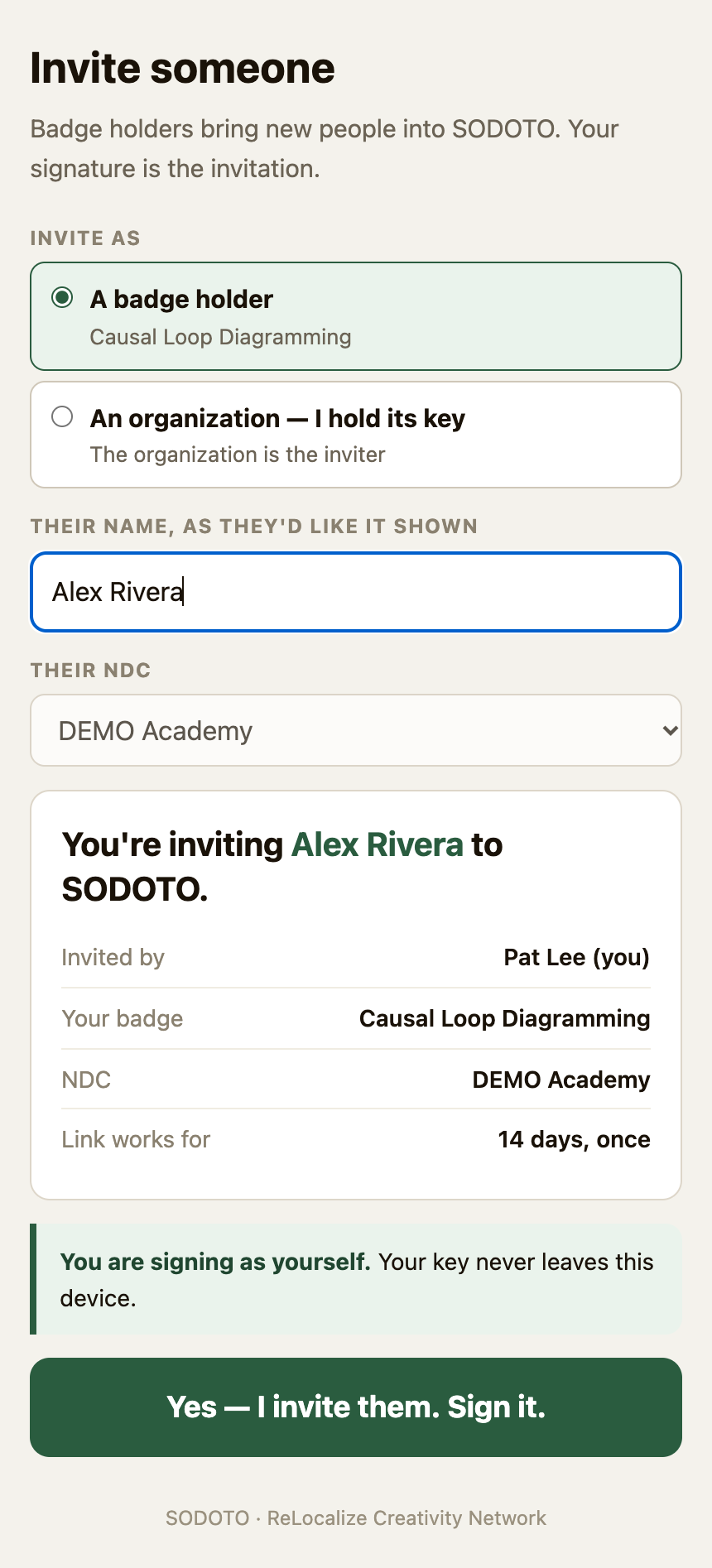
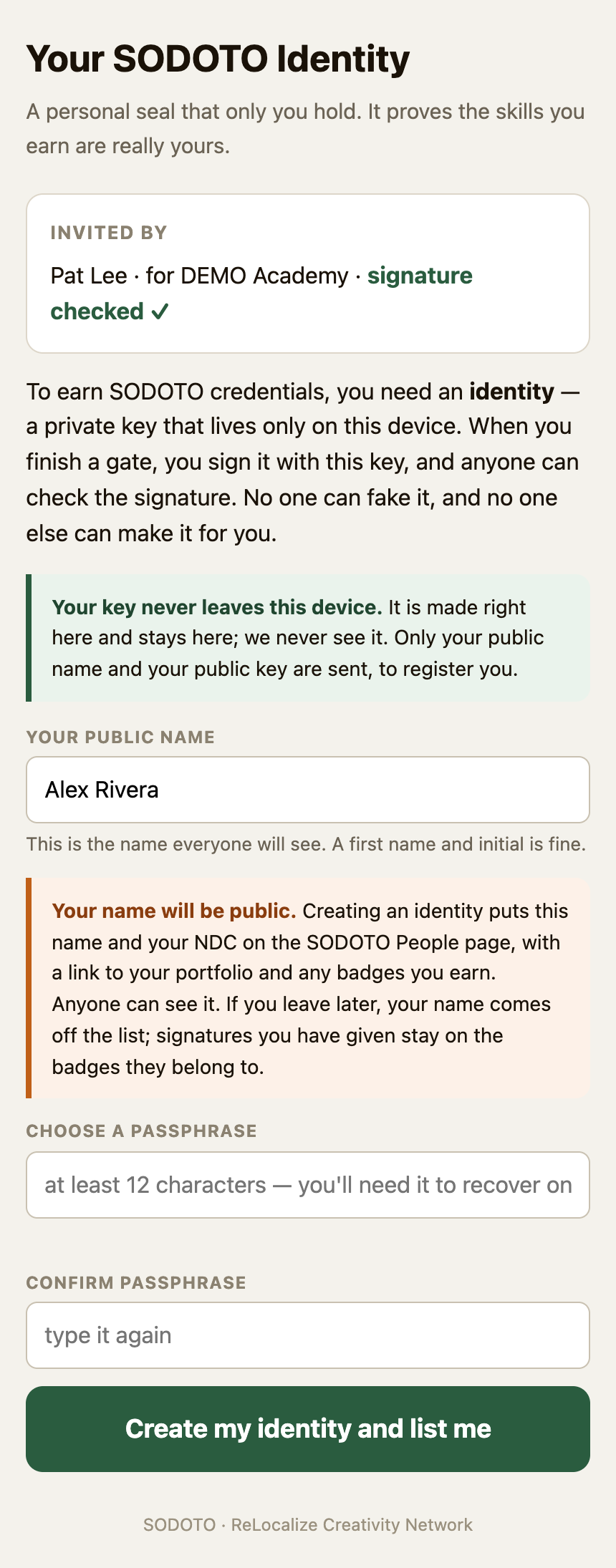
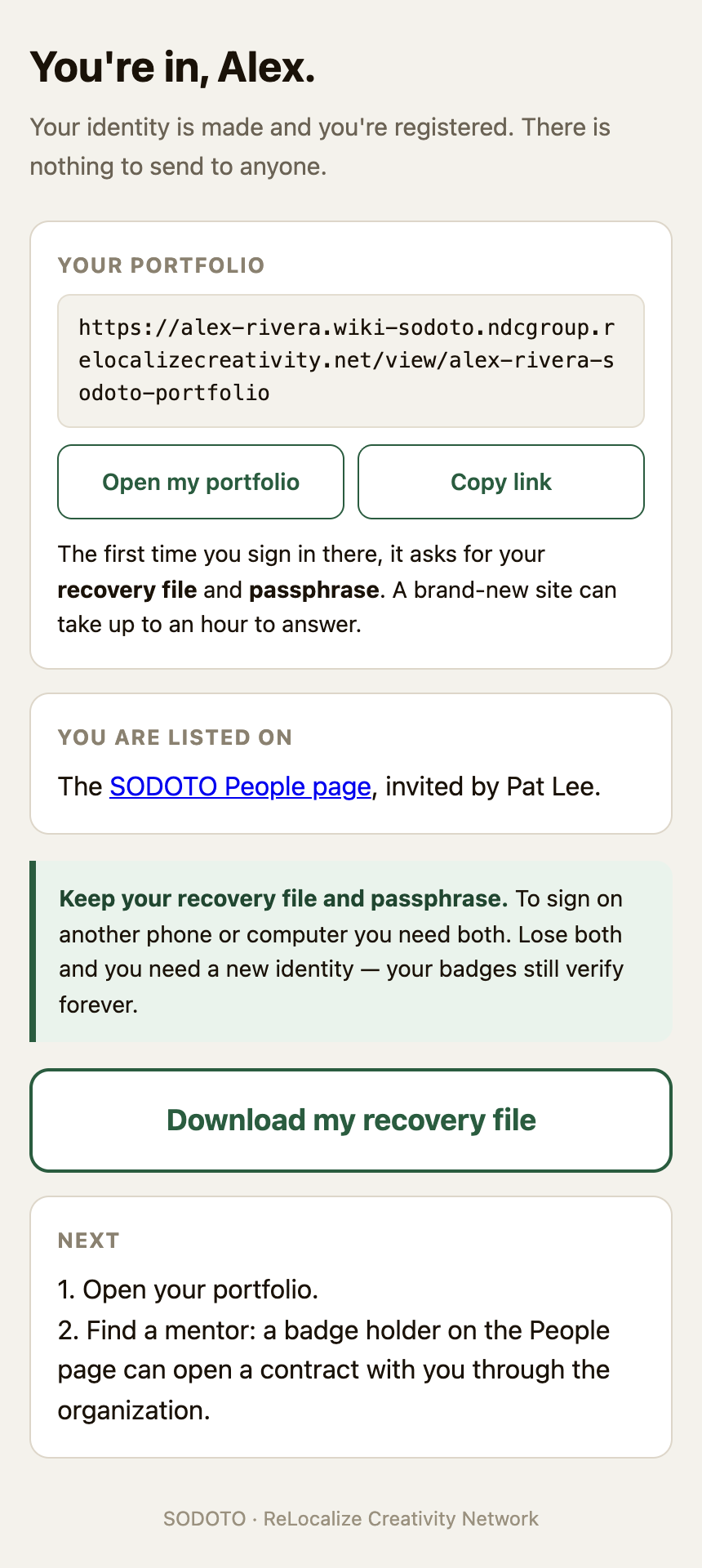
The screenshots in this manual are from a demo: the organization is DEMO Academy, Pat Lee is the mentor, Alex Rivera the learner and Jordan Lee the student. Click any picture to see it full size.
| Who invites | Whom | Into which NDC | What else is needed |
|---|---|---|---|
| A badge holder | Anyone | The NDC of one of their badges | Nothing — the server checks the NDC's seal on their badge |
| An NDC's key holder | Anyone — this is how the first people come in | That NDC | The NDC's key, pasted into the page; it never leaves the browser |
| A learner, after See One and Do One | Their own Teach One student | The NDC of their contract | Their mentor countersigns — a Countersign an invitation note appears on the mentor's portfolio. Once the mentor signs, a note on the learner's portfolio brings them back for the link. |
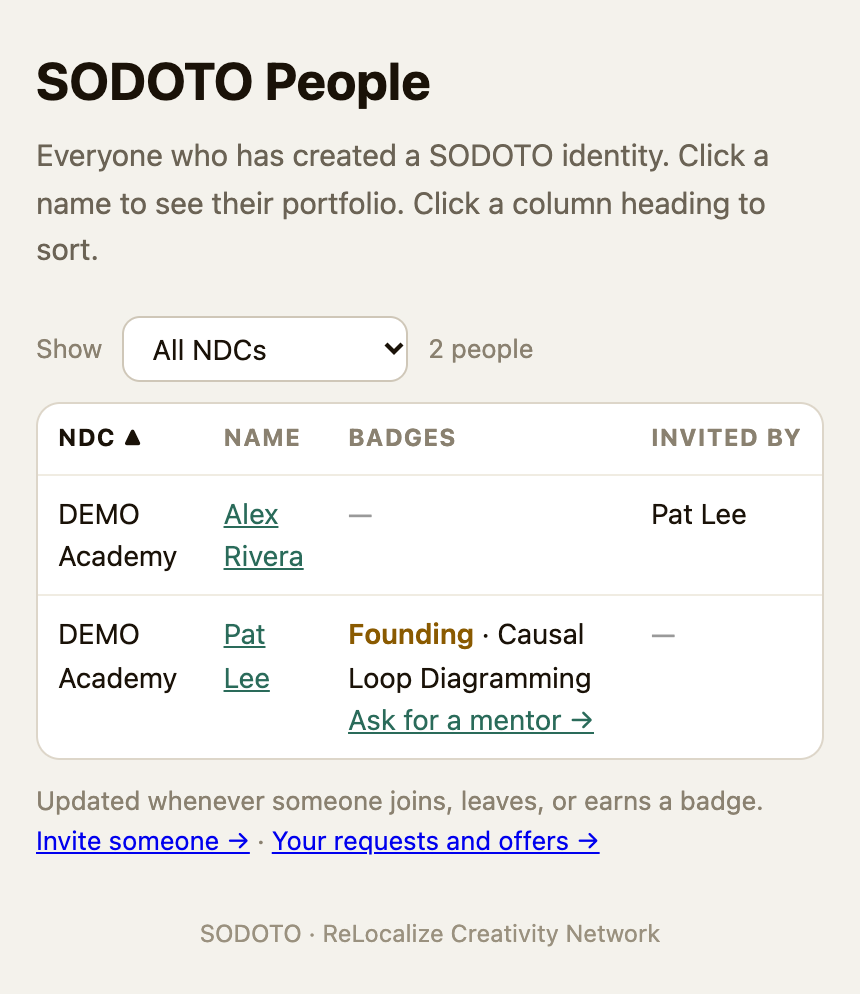
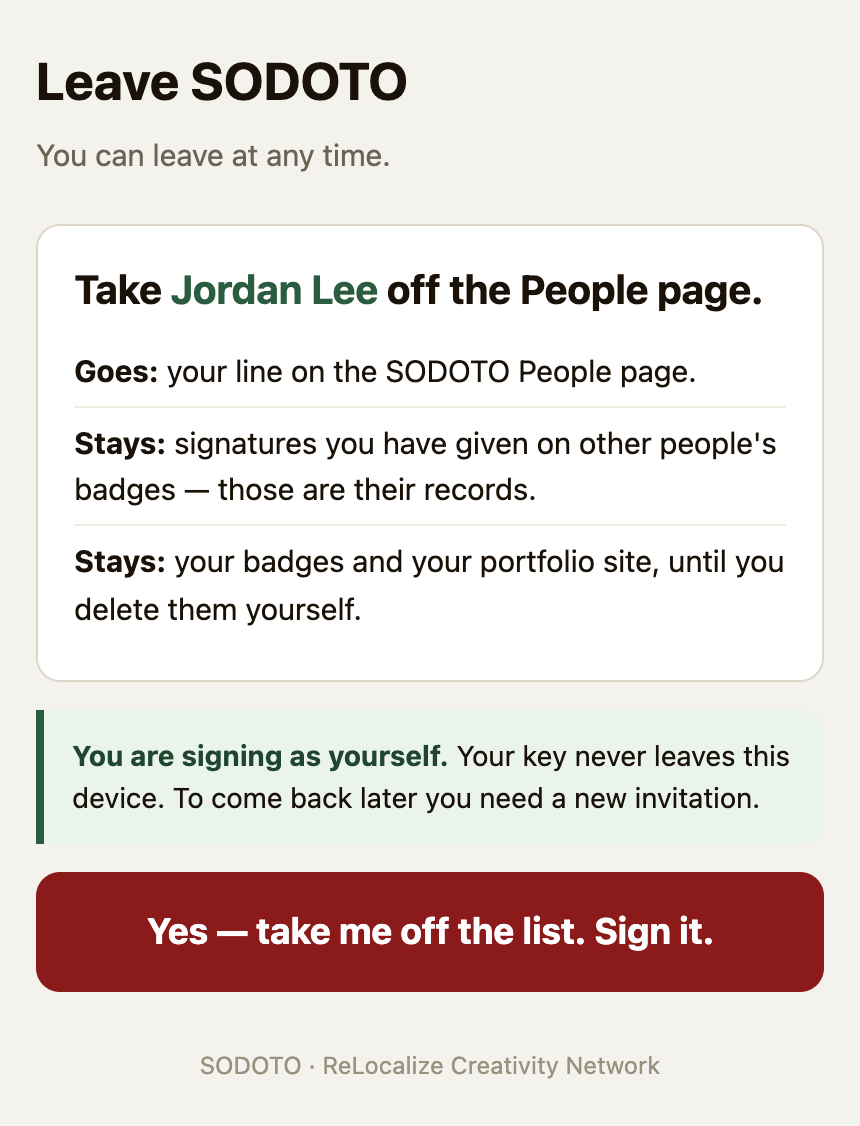
Leaving. Open Leave SODOTO from your portfolio and sign. Your line comes off the People page. Signatures you have given on other people's badges stay — those are their records — and so do your own badges and your site, until you delete them. To come back you need a new invitation.
Who Does What at Each Gate
Every gate runs the same way. It happens in person first; then two or three people each say, in their own name, what happened.
- Do the gate together, in person — all three of you at Teach One.
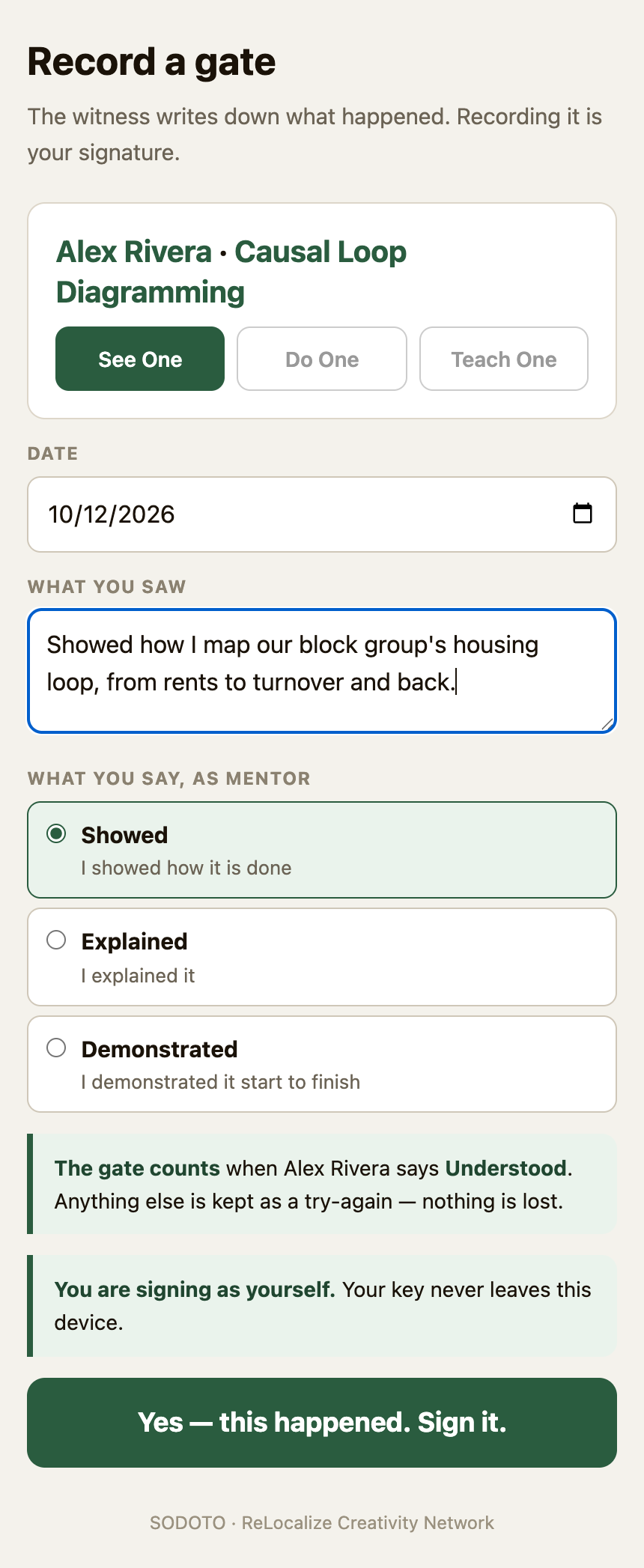
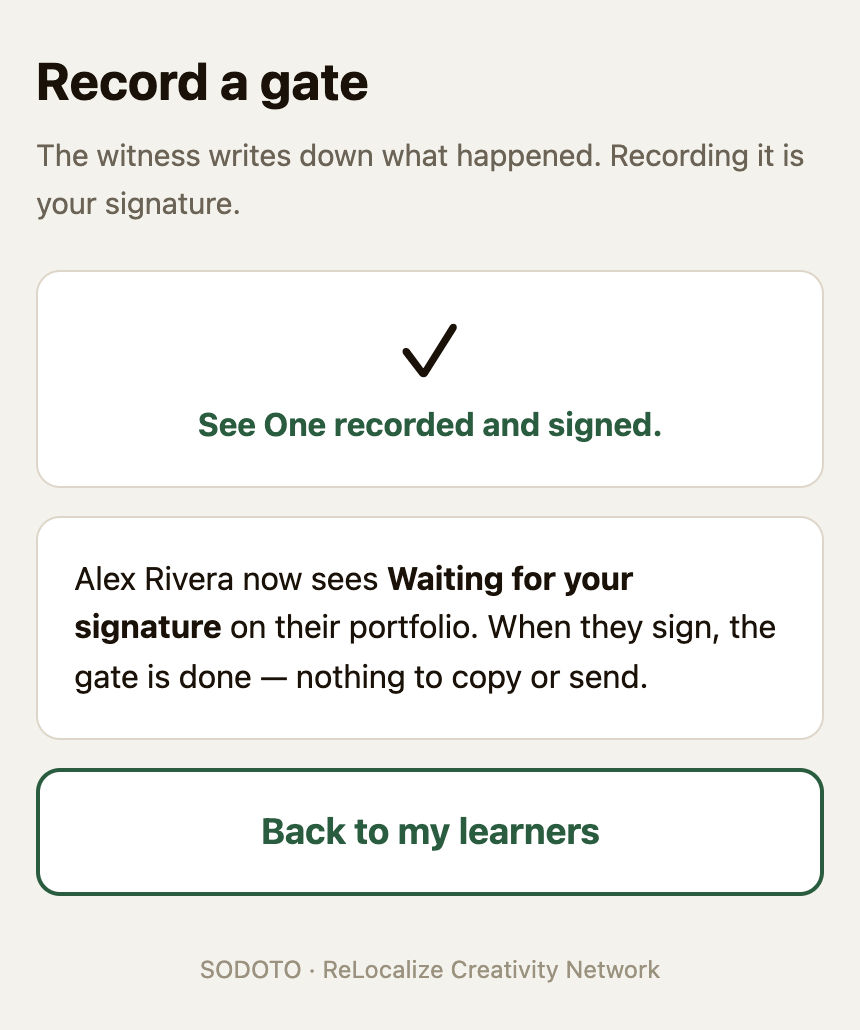
- The mentor records it. On their portfolio they open Record a gate, enter the date and a sentence on what they saw, pick their answer, and press Yes — this happened. Sign it.
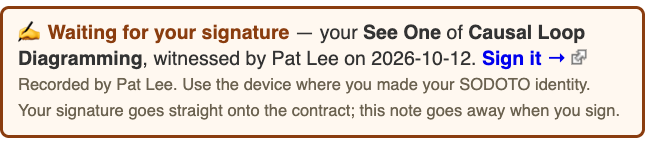
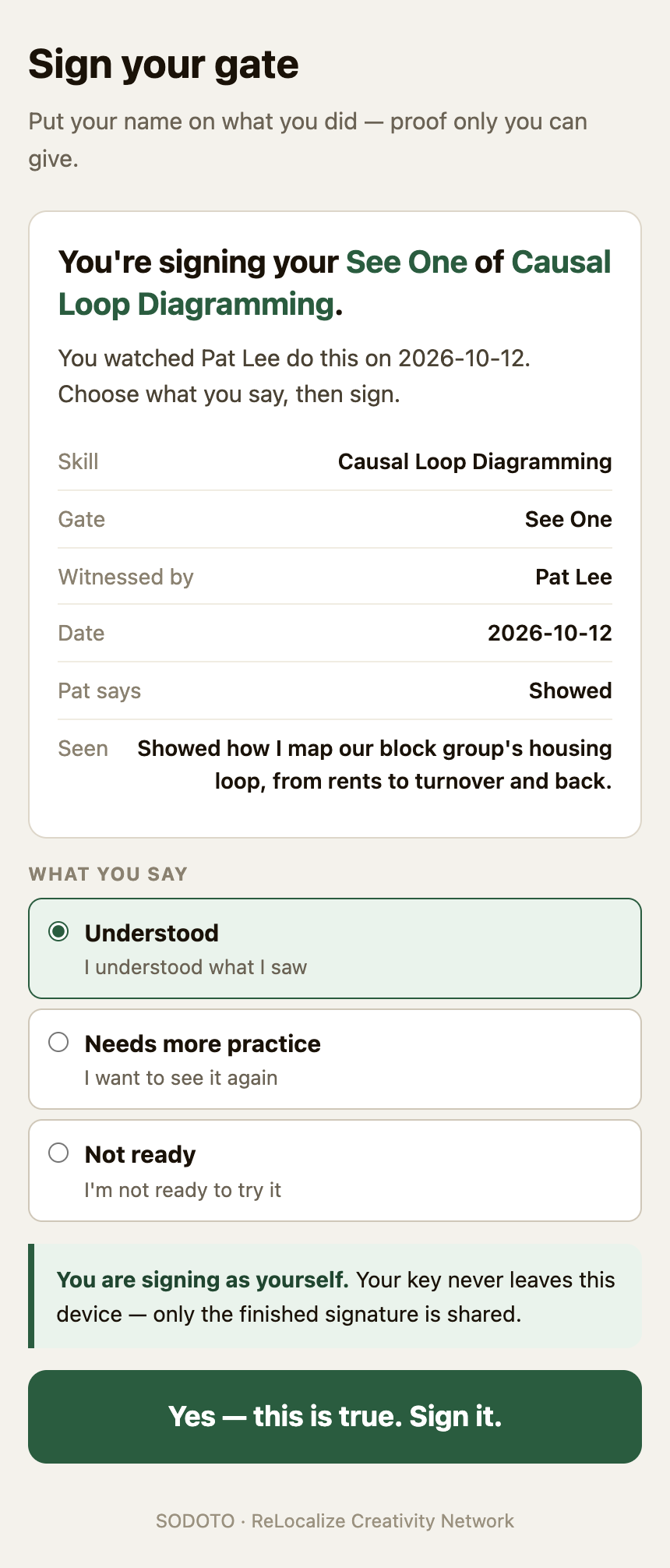
- The learner signs. A Waiting for your signature note appears at the top of their portfolio. They open it on the device where they made their identity, see what the mentor said, pick their own answer, and press Yes — this is true. Sign it. The note goes away.
- At Teach One, the student signs too, the same way, from their own portfolio.
| Gate | The mentor says one of | The learner says one of | The gate counts when |
|---|---|---|---|
| See One | Showed · Explained · Demonstrated | Understood · Needs more practice · Not ready | the learner says Understood |
| Do One | Satisfied · Needs more work · Not satisfied | Has done · Attempted · Not ready | the mentor says Satisfied and the learner says Has done |
| Teach One | Satisfied · Needs more work · Not satisfied | Has taught · Attempted · Not ready | the mentor says Satisfied and the learner says Has taught |
At Teach One the student says Understood · Needs more practice · Not ready. That is the student's own See One; it does not decide whether the learner's teaching counts.
If You're a Learner — Your Path Step by Step
These steps use Causal Loop Diagramming as a stand-in skill. Substitute whatever skill you are actually earning — the sequence is identical.
- Make your identity, and keep it. Someone invites you and sends you a link (see Joining). It creates a private key in your own browser — nobody else ever holds it, not your mentor and not the server. Choose a passphrase, download the recovery file, and put both somewhere safe such as a password manager. This key is your identity across all of RCN, and it is what makes the credentials provably yours. (If a coordinator sent you an older onboarding link instead, it ends by showing a public name beginning
did:key:z: send that back to them. It is safe to share.) - Your own site. Joining gives you a whole FedWiki site —
your-name.wiki-sodoto…— with your portfolio on it; the last page of joining shows its link. A brand-new site can take up to an hour before the link opens. On your first visit, click Sign in with my SODOTO key to claim it. Your key was made on the SODOTO tools site, so restore it there once using your recovery file and passphrase; after that, the browser remembers. From then on the site is yours to write on. - Choose a skill and find a mentor. The People page shows who holds which badge. Under each holder's badges is Ask for a mentor: choose the skill, add a note if you like, and sign. They see your request on their portfolio and accept or decline. A badge holder can also offer to mentor you; then the offer appears on your portfolio. When the second person signs, the contract opens by itself and a card for it appears on your portfolio. That person is your mentor for all three gates. (If you were someone's Teach One student in this skill and their badge is sealed, your See One already counts.)
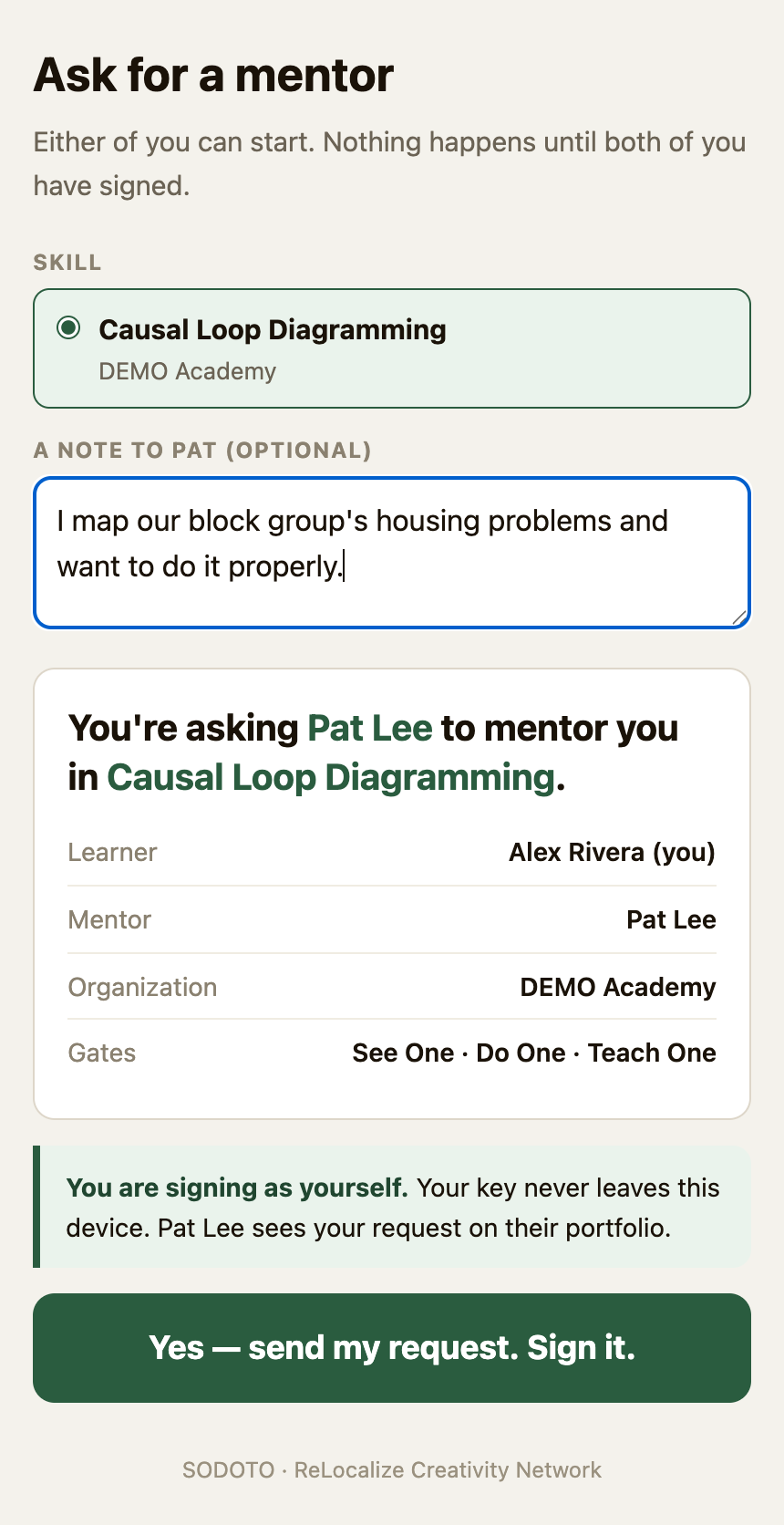
Asking Pat Lee to mentor you, with a note. Nothing happens until Pat signs too. - Arrange your See One. Ask to observe your mentor using the skill in real work — not a demo staged for you. Watch what they actually do and why.
- Sign your See One. Your mentor records it. Then Waiting for your signature appears at the top of your portfolio. Open it on the device where you made your identity, read what your mentor said, and say how it went for you: Understood, Needs more practice or Not ready. Sign. That is all — nothing to copy or send.
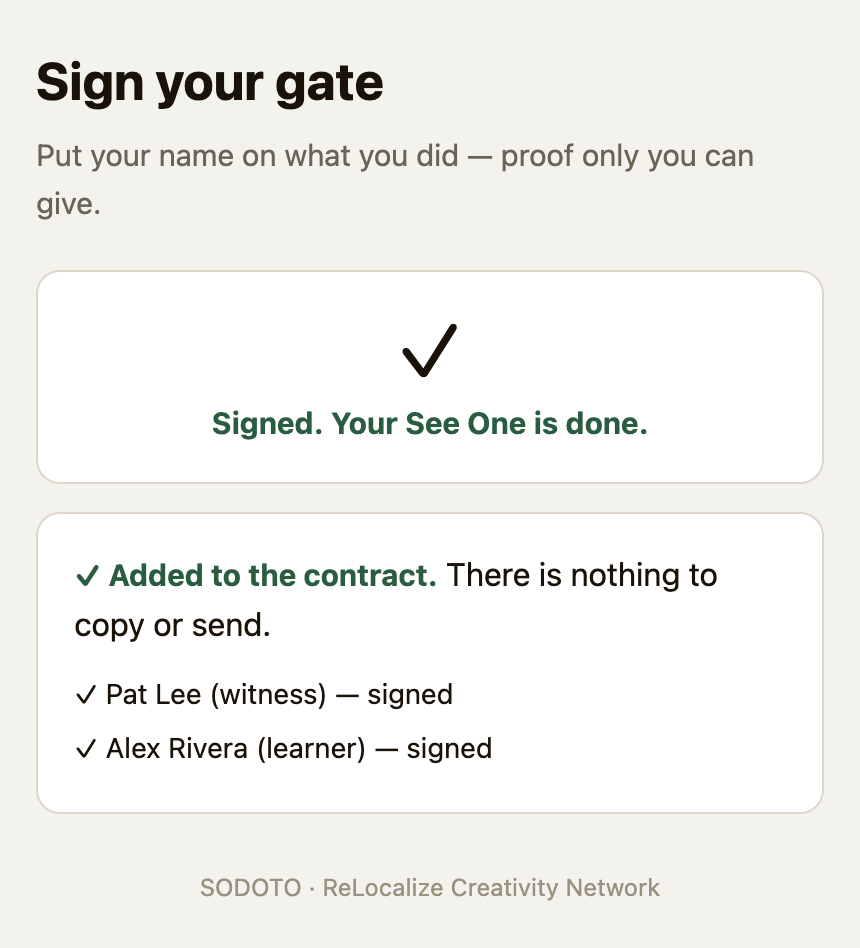
After you sign: the gate is done, and both signatures are on the contract. - Arrange your Do One. Schedule real work where your mentor can watch you do the skill yourself. Pick a genuine task, not a rehearsal.
- Do the skill. Your mentor observes without taking over. Afterward they give feedback and either confirm the gate or schedule another attempt — both are fine.
- Sign your Do One. Your mentor records it with their assessment. Sign it from your portfolio the same way, saying Has done, Attempted or Not ready.
- Arrange your Teach One. Find a newer person who wants this credential. They need a SODOTO identity of their own first. If they have none, invite them yourself: after your Do One, a Next: Teach One — Invite my student note appears on your portfolio. Your mentor countersigns, because you don't hold a badge yet. Teach them while your mentor watches. Your mentor records it and names your student; you sign (Has taught, Attempted or Not ready), and your student signs too, from their own portfolio. For your student, that teaching is their own See One.
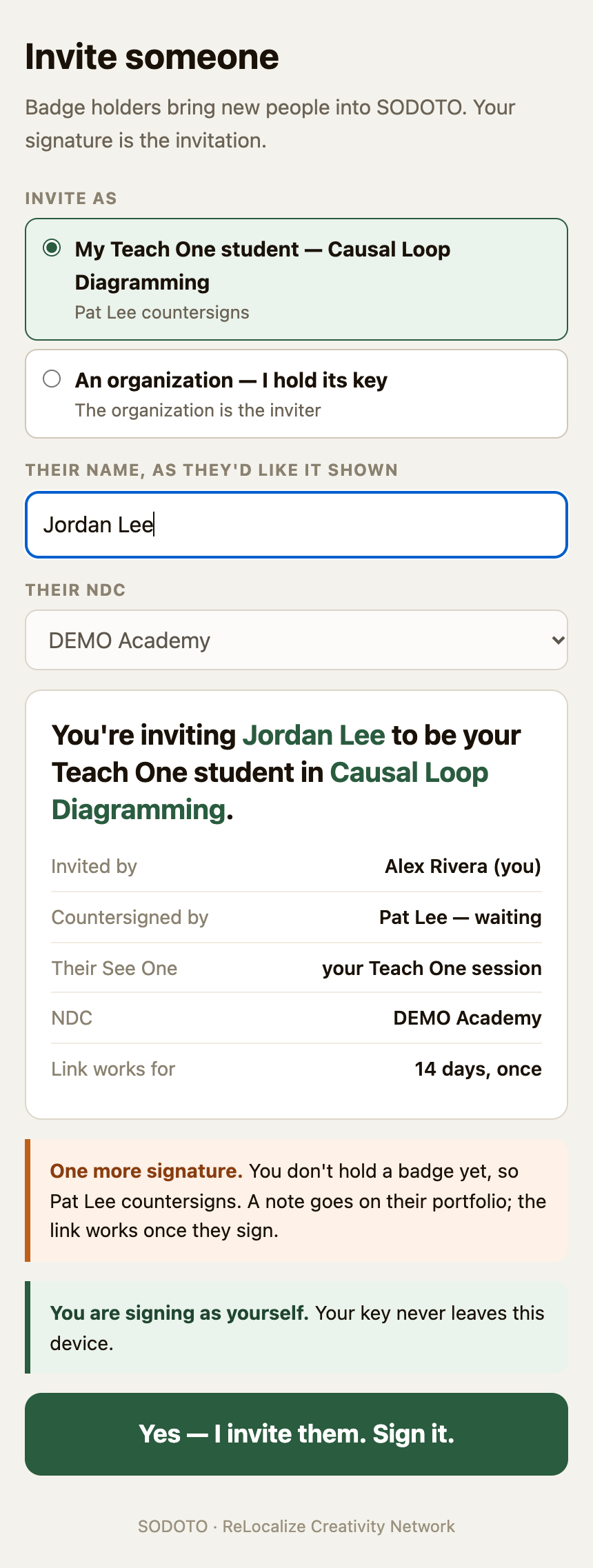
Inviting your Teach One student. Your mentor countersigns, because you hold no badge yet. 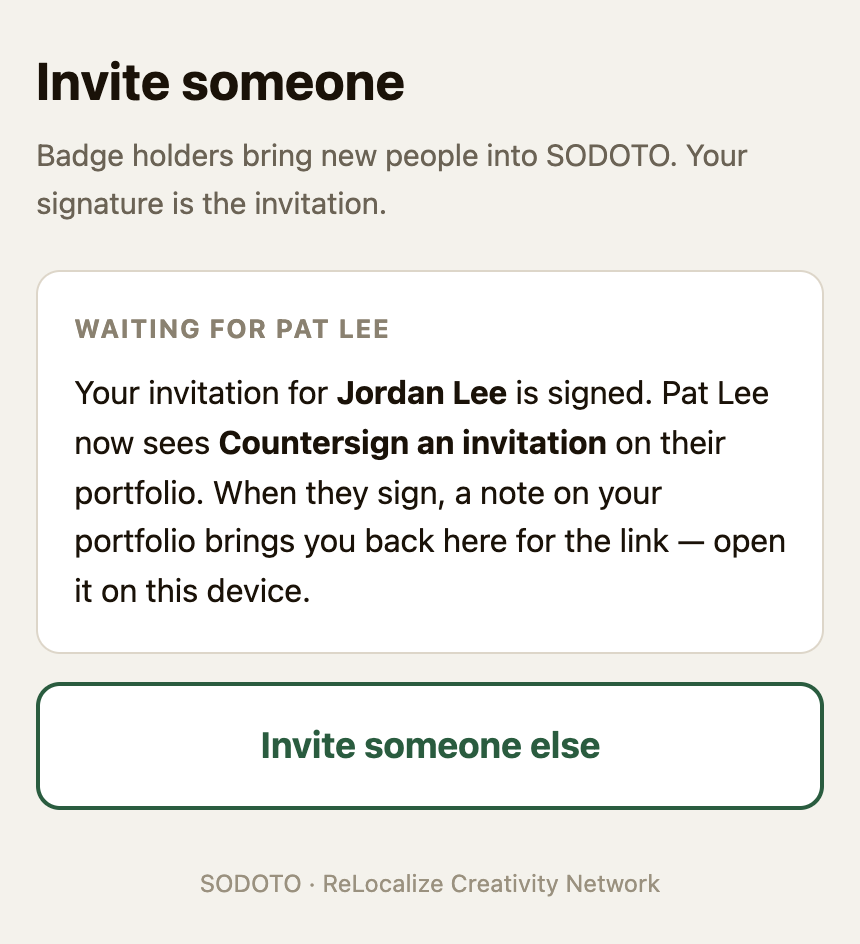
Signed; now waiting for your mentor. A note on your portfolio brings you back for the link. - Receive your credential. Once all three gates are signed by everyone, the contract appears on the NDC key holder's seal desk. They seal the badge with the NDC's key and it appears on your portfolio. You can now mentor others in this skill, and invite people.
- Write your own account. Your portfolio is yours to write on, and the record deliberately leaves the story out — the tool records what happened, not what it meant. Sign in on your site and write it: what you tried, what you used, where you got stuck, what you would do differently. Nobody can edit that but you, and it is the part a future learner will actually read.
Dana wanted the Causal Loop Diagramming credential, with Ken — who already holds it — as mentor. In week two Dana watched Ken build a real CLD with a working group (See One) and wrote up what they understood. In week three Dana built their own diagram with a different group while Ken observed (Do One). After the first attempt Ken recorded Needs more work — Dana had reversed a feedback polarity — and Dana signed it honestly as Attempted, so it was kept as a try-again. The second attempt was clean: Ken recorded Satisfied, Dana signed Has done, and the gate counted.
A month later a newcomer, Priya, wanted the same skill. Dana mentored Priya's See One and Do One while Ken watched Dana teach (Teach One). Ken recorded it and named Priya; Dana signed, and so did Priya, from her own portfolio — her own See One. The NDC sealed Dana's full credential, and Dana can now mentor this skill for others.
If You're a Mentor
Once you hold a credential — all three gates, including Teach One — you can mentor that skill for others. Being a mentor is one of the most valuable roles in a cooperative: every person who gains a skill because of your mentoring strengthens the whole network.
What mentors do
- Demonstrate the skill in real working conditions for learners at See One.
- Watch and evaluate learners at Do One — with honest, specific feedback.
- Watch and evaluate learners who are teaching at Teach One.
- Record each gate yourself, with your answer. Recording it is your signature.
- Keep your own skills current — a mentor whose skills have lapsed cannot credibly witness others.
Recording a gate
When a contract naming you as mentor opens, a Your learner — Record a gate → note appears at the top of your portfolio. After each gate:
- Open Record a gate on the device where you made your SODOTO identity. If you mentor more than one person, pick the learner.
- The page shows the next gate. Enter the date and a sentence or two on what you saw.
- At Teach One, type the student's name exactly as they registered it and press Check. The student needs a SODOTO identity first.
- Pick your answer (see the table above) and press Yes — this happened. Sign it.
The learner, and at Teach One the student, then see Waiting for your signature on their own portfolios. Until they sign, the page shows the gate as waiting and won't take another attempt. If it ends as a try-again, record the next attempt when you are both ready.
Countersigning your learner's student
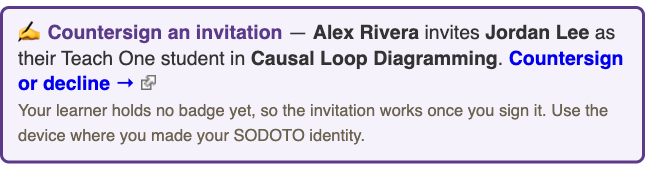
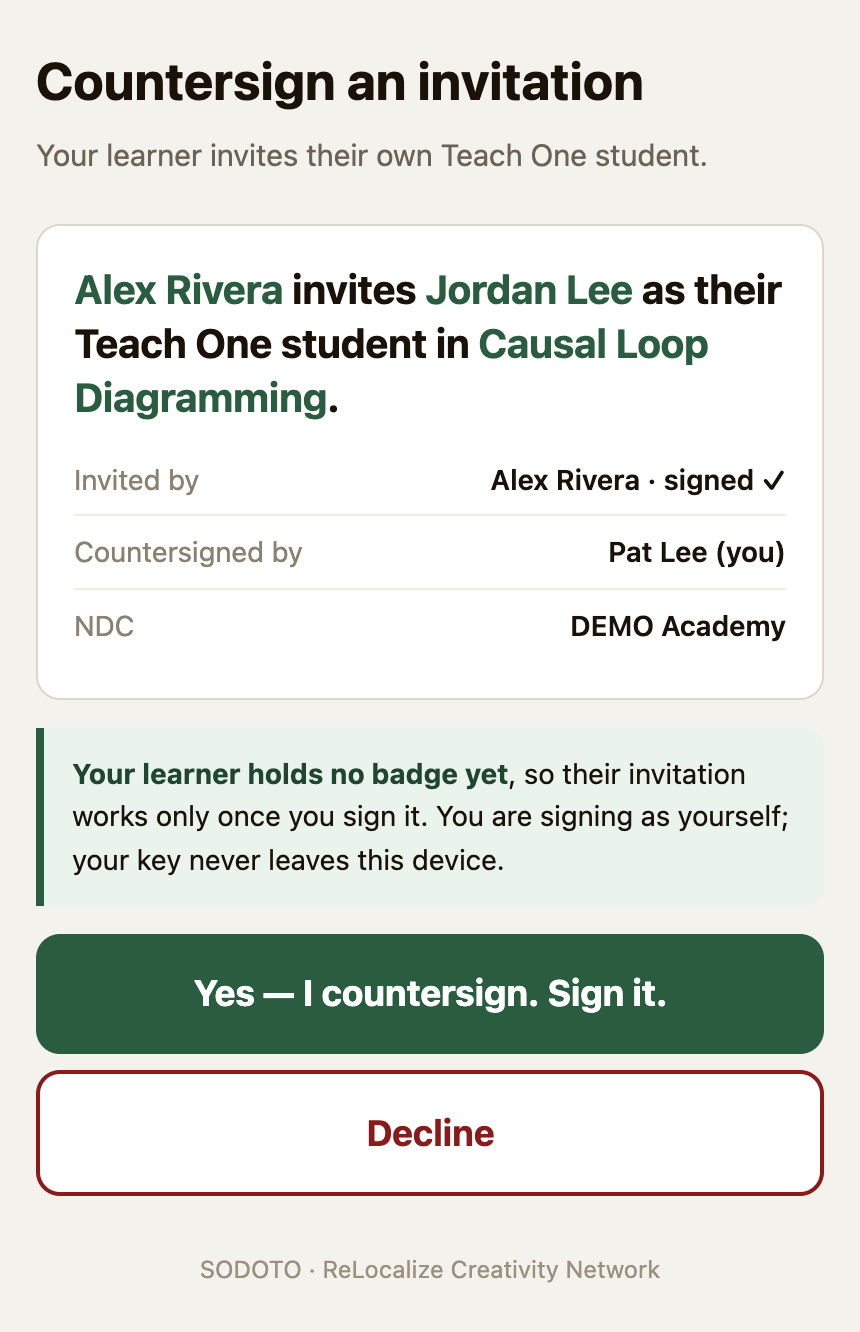
After Do One, your learner may invite their own Teach One student. Because they hold no badge yet, the invitation works only once you countersign it. A Countersign an invitation note appears at the top of your portfolio. Open it on your own device, check who is being invited, and press Yes — I countersign. Sign it. or Decline. Either way your learner sees a note on their portfolio.
Taking on a learner
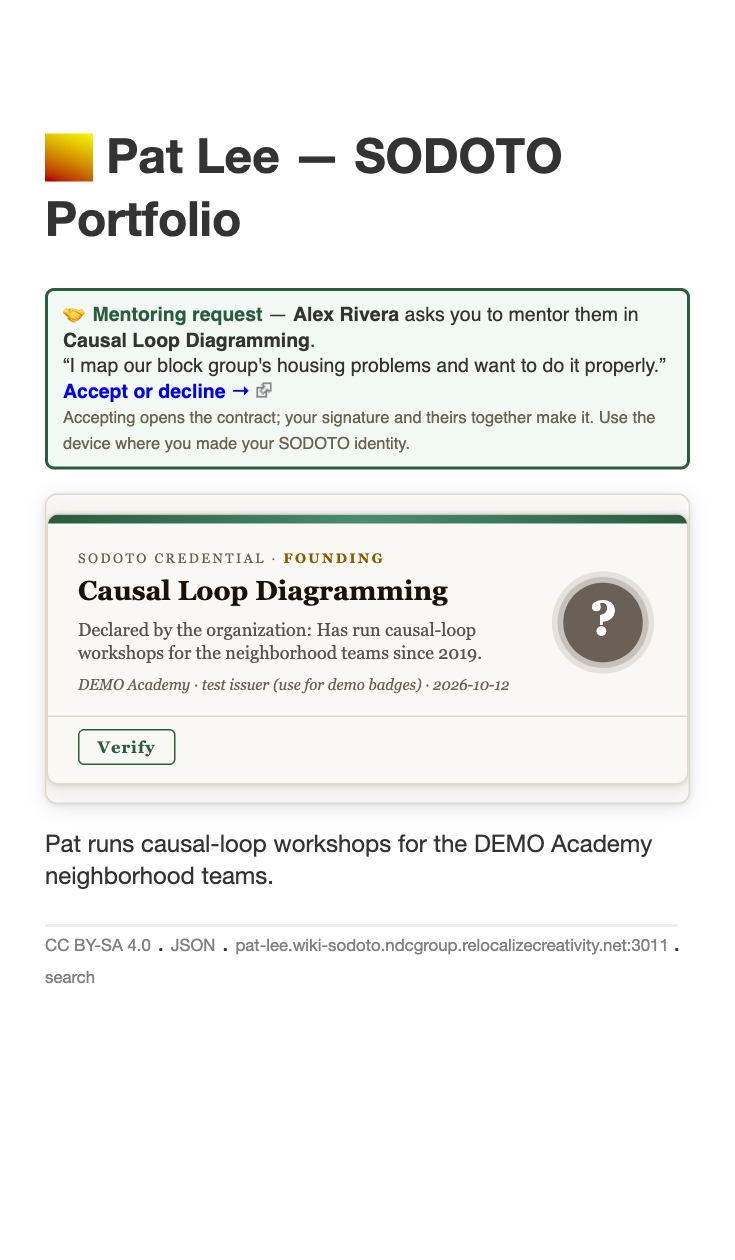
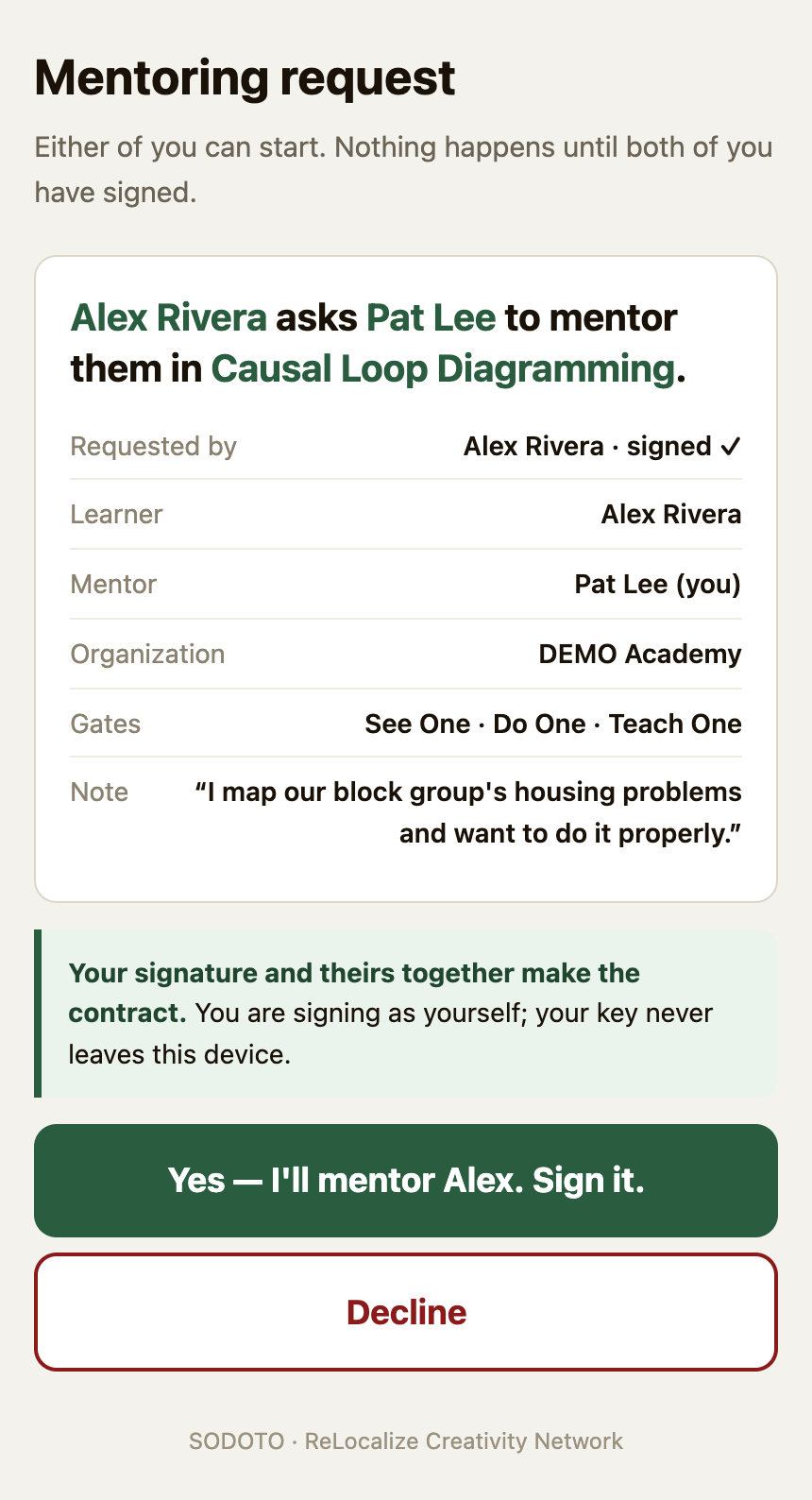
A learner asks you from the People page: a Mentoring request note appears at the top of your portfolio, with their note. Open it on your own device and sign Yes — I'll mentor them, or decline. Or offer first: open Offer to mentor, type the person's name as registered, choose the skill, and sign; they accept from their portfolio. Either way, the two signatures open the contract, and your Record a gate note appears. You can mentor a skill only from a badge you hold in it, and the contract belongs to the NDC that sealed that badge.
Inviting
Holding a badge also lets you invite anyone into its NDC, with Invite someone. See Joining, inviting and the People page.
The mentor standard
When you confirm a gate, you stake your own credential and reputation on the judgment that the learner met the standard. Confirm only what you genuinely observed. If a learner did not meet it, record that honestly — Needs more work or Not satisfied — and schedule another attempt. A mentor who passes learners who are not ready weakens every credential downstream.
If You Hold the NDC's Key
Since October 2026 there is no coordinator in the middle. People join by invitation, learners and mentors open contracts between themselves, mentors record gates, and everyone signs their own part. What is left is the organization's own act: sealing finished badges with the NDC's key, and declaring founding badges so a skill has its first holders. Both happen in the browser-based issuer tool. The Issuer Tool Guide has per-tab detail; here is the whole loop.
- Open the tool at
sodoto.ndcgroup.relocalizecreativity.net/tools/sodoto-issuer.html. On first use it asks for the write passphrase, kept only in your browser. It opens on the Seal tab. - Founding badges — once per skill, at the start: choose the skill and a registered person the NDC already trusts to teach it, write the grounds, paste the NDC key, and declare. Their portfolio gets a Founding badge, and from then on learners can ask them to mentor.
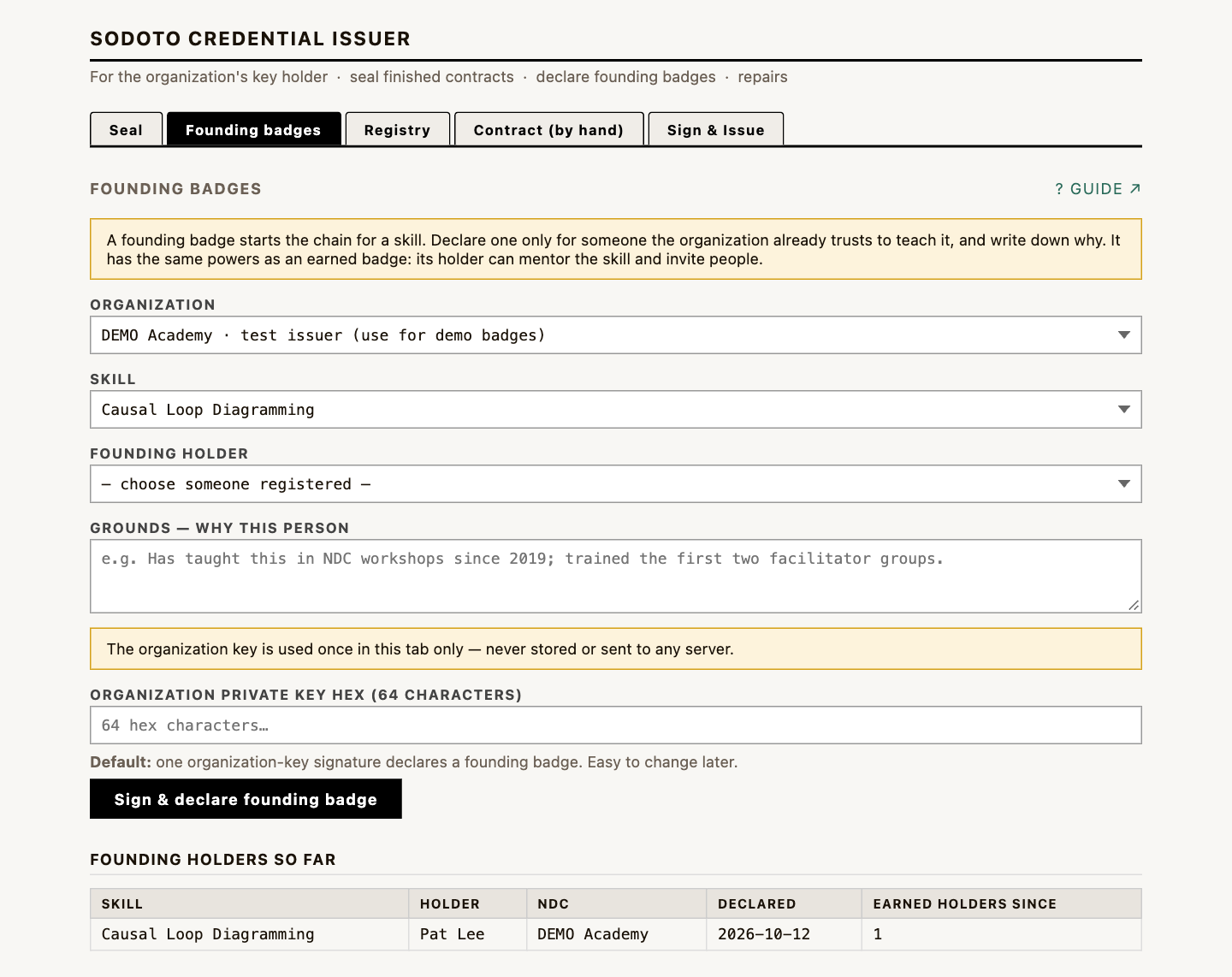
The Founding badges tab. The table at the bottom shows how many earned holders each founding badge has led to. - Seal — contracts arrive here by themselves when the third gate is signed, with every signature already checked (7 of 7 checked ✓). Choose Seal…: the contract opens in Sign & Issue. Review the preview, enter the NDC's 64-character hex key, and Sign & Write Badge. Signing happens in your browser; the key is cleared right after and never sent to the server. The contract moves to Sealed.
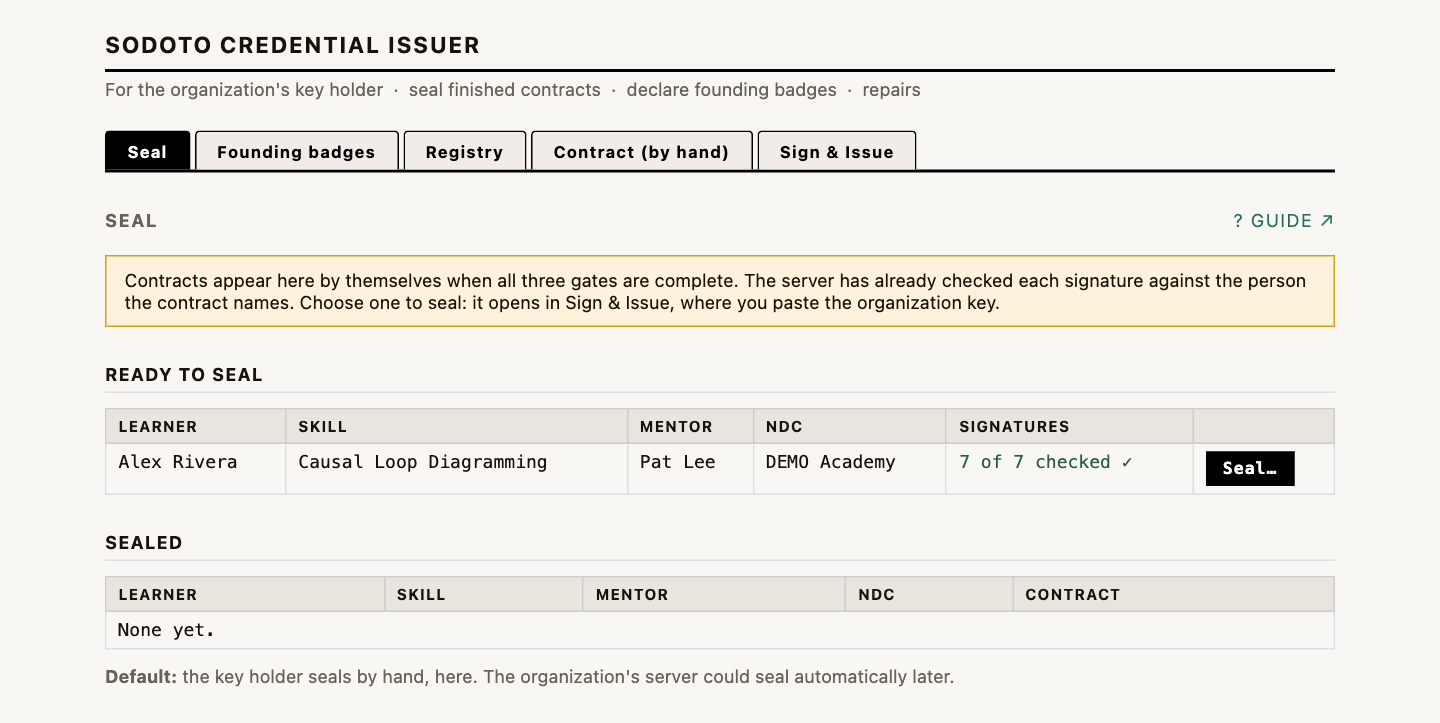
The Seal tab: a finished contract, all seven signatures already checked. 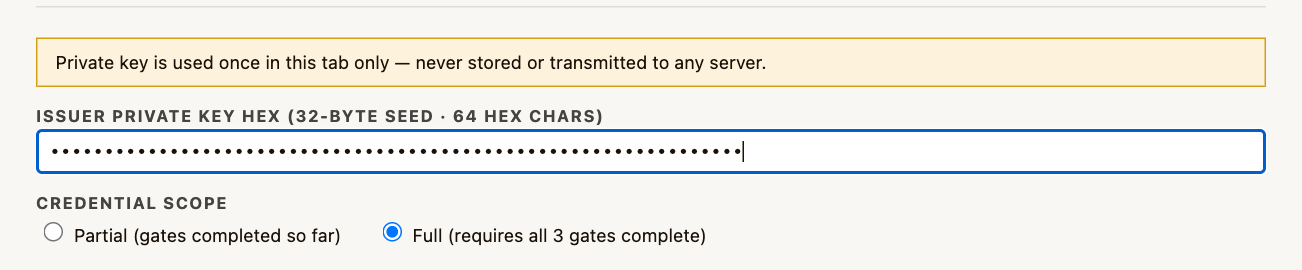
In Sign & Issue: paste the NDC key, choose Full, then press Sign & Write Badge to Portfolio below. - Verify — open the learner's portfolio and click Verify on the new badge. Confirm ✓ Verified. A failure means the key did not match the NDC's DID.
- Repairs, when needed — the Registry tab shows anyone who needs attention, and has Don't list for people who asked to stay off the People page. Contract (by hand) still opens a contract or records a gate the old way when someone can't use their own page.
- Check the wiki itself. Open the pages the tool said it wrote and confirm the entries are there. The wiki is the record, so treat what is on it as the truth and the tool's message as a claim.
Reading & Verifying a Badge
When all three gates are confirmed and signed, the badge appears on the learner's FedWiki portfolio page. It looks like this — here after pressing Verify and opening the details:
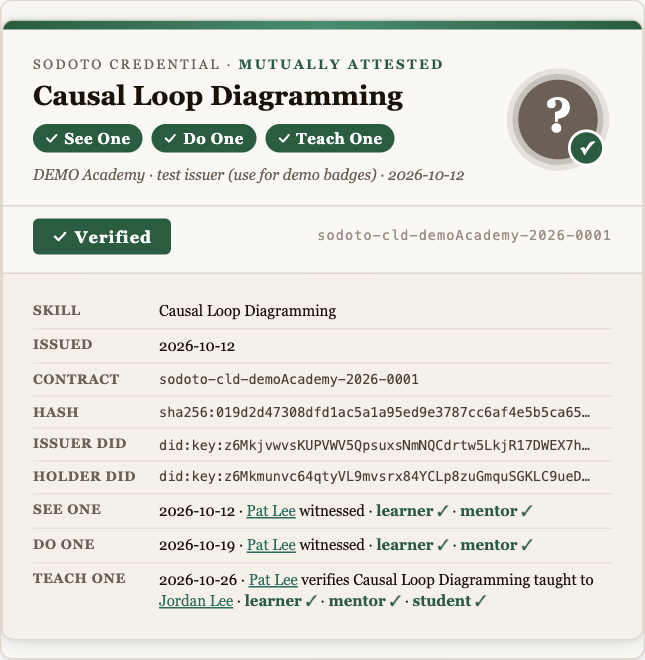
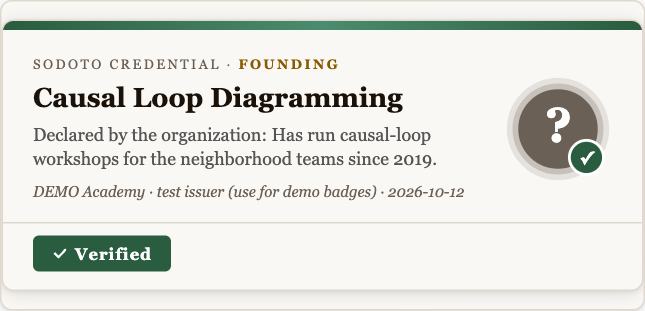
Each badge shows the skill and the issuing NDC's seal, the three gate dates, the mentor's name (linked to their own portfolio), the full attempt history for each gate, and a Verify button. Long badges collapse into an accordion — click a heading to expand it.
To verify a badge, click Verify. The check runs entirely in your browser: it reads the signed credential, recovers the issuer's public key straight from its DID, and confirms the signature. ✓ Verified means the badge is authentic and unaltered. No account, no server call, no third party — and it works permanently, for anyone, anywhere.
Optional Add-ons (Not Part of SODOTO)
Some cooperatives layer other systems on top of SODOTO. These are separate and optional — SODOTO works fully without any of them.
- Pay tiers or roles. A cooperative may decide that holding certain credentials moves someone to a higher pay tier or unlocks a role. That is a cooperative policy choice attached to the credential — not something SODOTO defines or requires.
- Agreements & value exchange. A separate system (CfA-dSC) lets people make agreements and exchange value with a three-currency settlement. Anyone exchanging value can use it, and because it shares the same DID identity a cooperative can connect it to SODOTO — for instance recording a Teach One as a gift of value — but it stands on its own and is not needed to earn or verify a credential.
Questions About Your Credentials
- Can I lose a credential? No. Once issued it is yours and cannot be revoked after the fact. If your skills lapse, the credential simply reflects when it was earned.
- What if my mentor leaves? Your credential stands. It was signed by the NDC — the organization — not by the individual mentor. Their name remains in the record as a witness.
- Can I use my credentials outside my cooperative? Yes. Your portfolio is publicly verifiable. Any organization that understands SODOTO can read and verify it. You own your portfolio.
- What if I disagree with a mentor's assessment? Say so when you sign: you give your own answer, and a gate only counts when both answers agree. If the dispute goes deeper, talk to your NDC — a gate can be re-evaluated by a different mentor.
- I can't sign — it says the signature is for someone else. The device you are on holds a different identity. Open the link on the device where you made your own SODOTO identity, or restore your identity there with your recovery file and passphrase.
- Who can see my name? Anyone. The People page lists everyone who has joined, with their NDC, badges and inviter. Leave SODOTO takes you off it.
- My invitation link says it was used, or expired. Each link works once, for 14 days. Ask the person who invited you for a new one.
- Do I need any special software? No. Everything happens on the web — the issuer tool and your portfolio both run in an ordinary browser over HTTPS. Nothing needs to be installed, and nothing runs on any one person's machine.
Related Documentation
- SODOTO Reference — what it is, how it works, and where every piece is hosted.
- Issuer Tool Guide — per-tab help for the NDC key holders who use the tool.