Marc Pierson and Claude Opus 5.5 · September 2026, updated October 2026
How to issue a skill credential, and how the three tabs fit together. See One · Do One · Teach One
The SODOTO (See One, Do One, Teach One) Issuer records that a learner has seen, done, and taught a skill, then issues them a cryptographically signed badge. The badge lives on the learner's FedWiki portfolio page and verifies in any browser with no server call — the signature is checked locally against the issuer's public identity. The issuer's private key never leaves your browser.
Jump to: The workflow Who does what Registry Contract Sign & Issue
The whole loop since October 2026, from the top left. The red boxes are yours, in this Issuer; everything else people do themselves, each with their own key. The dashed arrow is the chain: every sealed learner can mentor and invite the next.
| Role | Does | Where | How they get the role |
|---|---|---|---|
| NDC key holder (you) | Seals finished contracts; declares founding badges; invites on the NDC's behalf; repairs (Registry, Don't list, Contract by hand). | This Issuer; Invite someone | Chosen by the NDC; holds the write passphrase and the NDC key seed. |
| Mentor | Records each gate: date, what they saw, and their answer. Recording is their signature. | Their portfolio → Record a gate | Holds this skill's badge, earned or founding, and accepts a learner's request or makes an offer the learner accepts. |
| Learner | Signs each gate, choosing their own answer. | Their portfolio → Waiting for your signature | Joined by invitation (or registered here), and you open a contract naming them. |
| Student | Signs at Teach One, choosing their own answer. It counts as their own See One. | Their portfolio → Waiting for your signature | Has a SODOTO identity — often invited by the learner, with the mentor countersigning. The mentor names them when recording Teach One. |
| Inviter | Signs an invitation by name and NDC; sends the link. | Invite someone | Holds a complete badge (invites into its NDCs), holds an NDC key, or is a learner past Do One inviting their own student. |
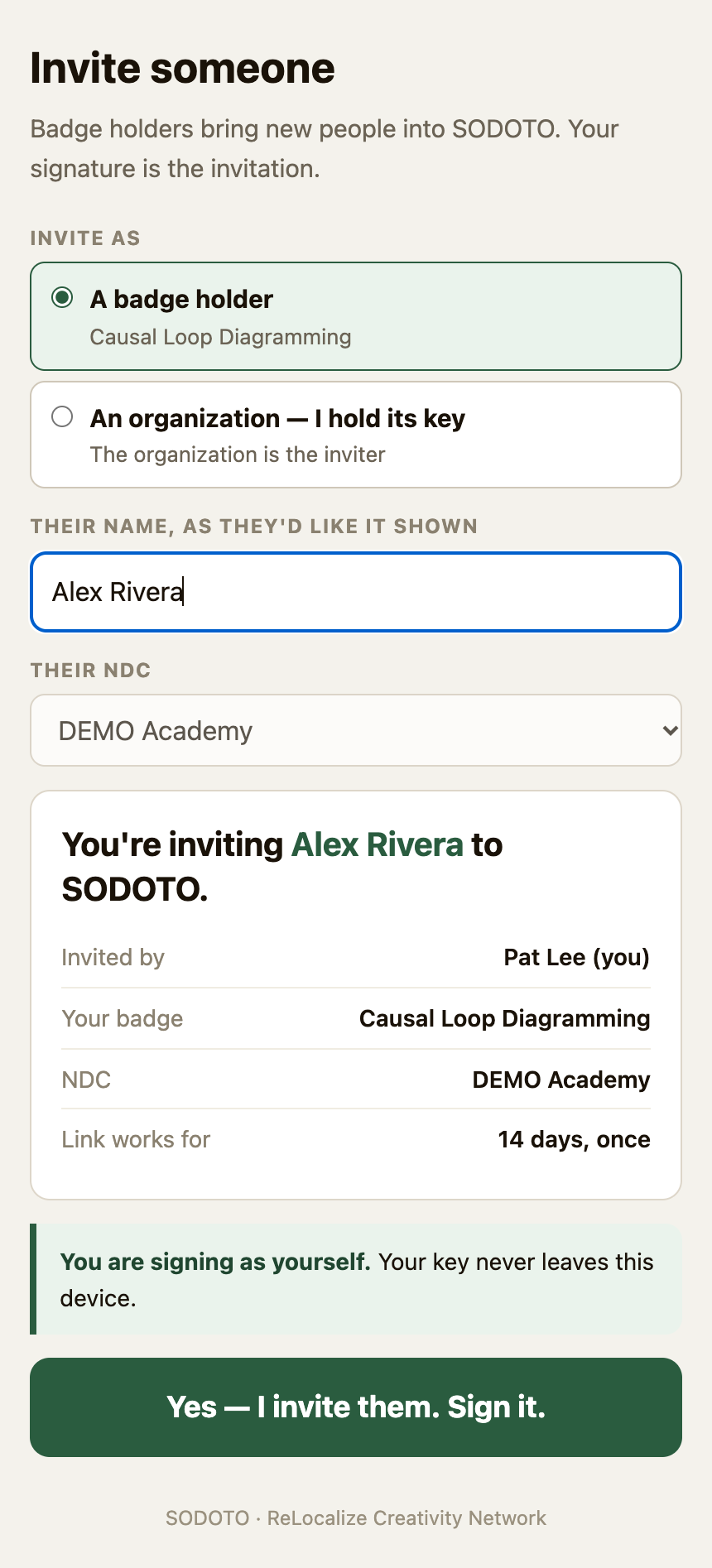
Since October 2026 most people arrive already registered. Someone who may invite opens
tools/sodoto-invite.html (linked from each new portfolio), types the newcomer's name, picks
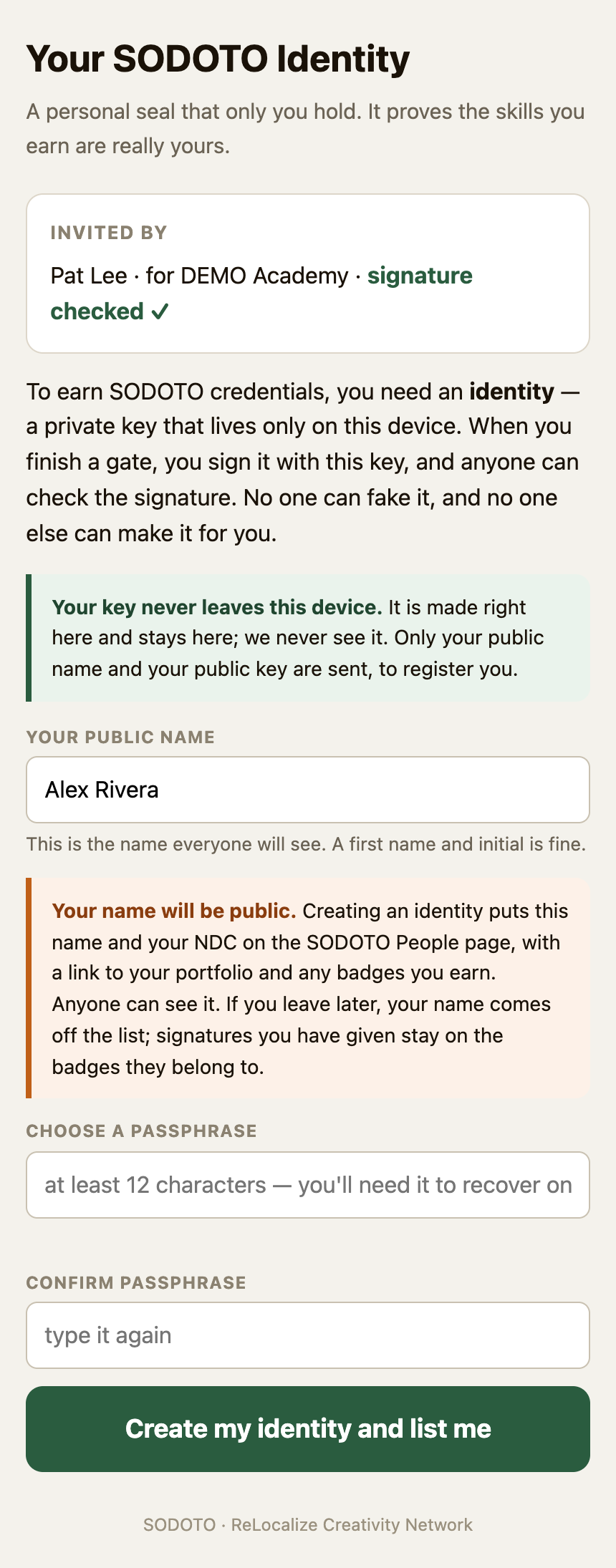
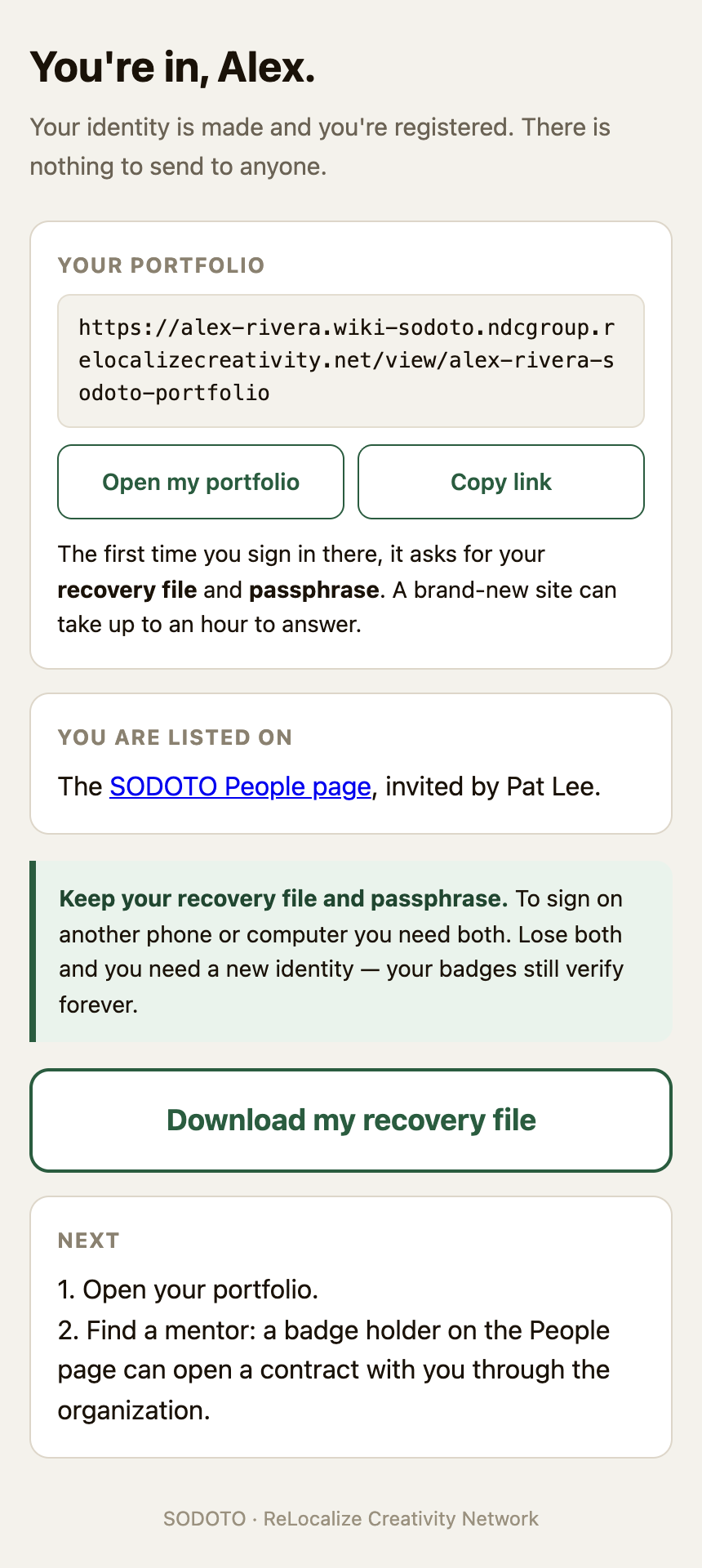
the NDC and signs. The newcomer opens the link, makes their key, and is registered with their own site in
one step — no DID to paste, no Provision, no welcome message to send. They show in the Registry with the
rest; their registry entry also records who invited them and their NDC.
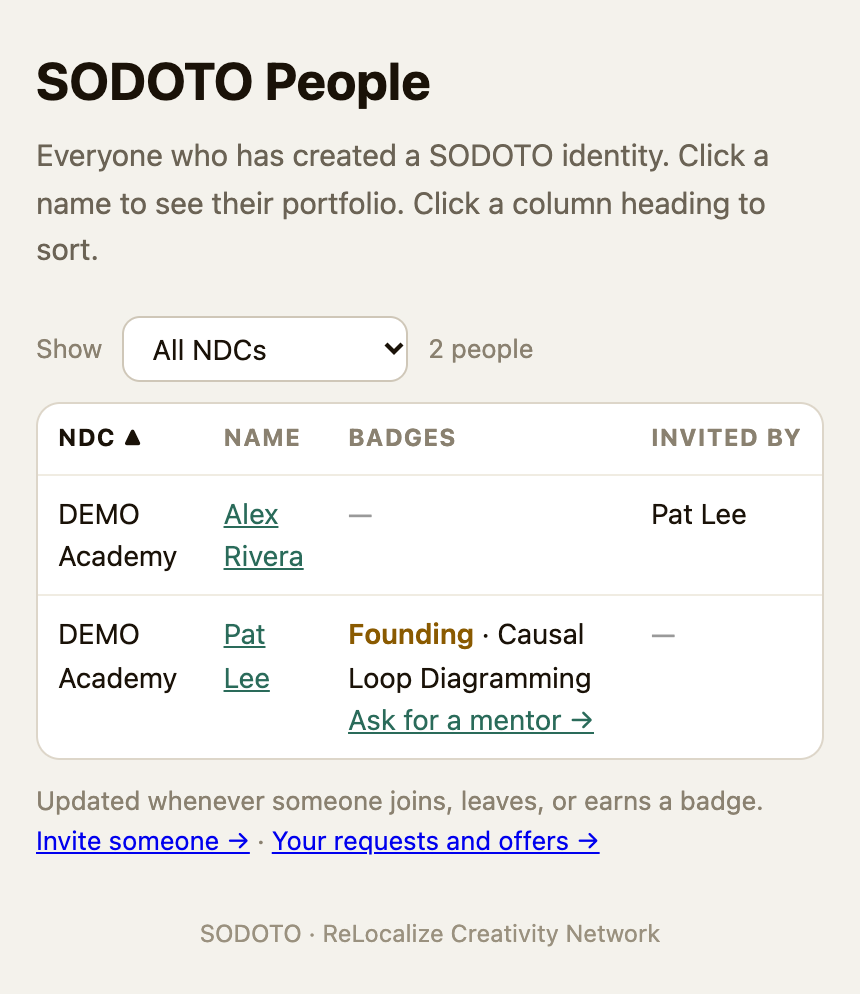
tools/sodoto-people.html lists everyone who joined by invitation — name, NDC, badges,
inviter, portfolio link — sortable by any column and filterable by NDC. A plain copy is written as the
SODOTO People page on the main wiki whenever someone joins, leaves or gets a badge. People sign
themselves off with Leave SODOTO.
SODOTO_LIST_EXISTING=1 is turned on. They never saw the notice that names go public, so tell
them first. Then the setting lists everyone in the Registry except those who have left.The Registry's People page column says where each person stands: listed,
not yet (registered before invitations, while the setting is off), not listed, or
left. List now, under not yet, lists that one person at once, without
turning the setting on for everyone, and puts the same welcome note with links (People page, Invite someone,
Leave SODOTO) at the top of their portfolio that newcomers get; use it once they know their name and NDC go public. Tick Don't list for anyone who asked to stay off the page — for instance in
reply to the note. It takes effect at once, also on the wiki copy, and holds even after
SODOTO_LIST_EXISTING is turned on. Untick it to list them again. A person who left signed that
themselves; to come back they need a new invitation.
tools/sodoto-orgs.json. Add the new NDC there as well as to the Issuer's own list.The Registry is the roster of people the tool knows about. Everyone who appears as a learner, mentor, or student elsewhere in the tool comes from here.
did:key:z6Mk…) — their decentralized identity. A badge is issued to this DID, so a verifier can confirm it belongs to the right person, not just to a name anyone could type.their-slug.wiki-sodoto…); only the demo cast shares the base site. Links elsewhere in
the tool are built from this, so a wrong site here means links that point at pages which do not exist.The tab opens on Needs attention: only the people who need something done, with a count on the button. Each one carries a tag saying why, and the buttons under the search box narrow the list to one reason. Red tags block issuing and are listed first:
did:key, usually cut off when it was copied.The yellow no own site tag means the person is still on the shared site; Provision fixes it. The demo cast stays on the shared site on purpose and is never flagged.
All shows everyone. In either view the search box matches name, slug, site, or any part of the DID, and the table shows 50 people a page. When you add someone, the table switches to show just their new row, so you can check it; clear the search to go back.
Add a person by entering their name (the slug and portfolio slug fill in automatically) and their DID,
then Add to registry. The learner, mentor and student boxes on the Contract tab search this list:
type part of a name and pick from the matches. Each match shows the person's site and the end of their DID,
so two people with the same name can be told apart. On the pilot, the demo people (all prefixed
DEMO —) are seeded here for you.
A DID can be registered only once. If you paste a DID that already belongs to someone, the tool refuses and names who holds it — that is almost always the same person arriving twice, and you should use their existing entry. If they have lost their key, do not register a new DID for them yet: ask them to restore from their recovery file first. A ⚠ in the DID column marks entries from before this rule that share a DID with another entry.
Prefer an invitation (above). This is for when one can't be used. Do not ask anyone for a private key, and do not make one on their behalf. Enter their name and your own name, click Make onboarding link, and send them the link. Their page tells them to send their public DID back to you by name, so it matters who sends it; this browser remembers your name. They mint a key in their own browser, save a recovery file, and send back only their public DID — which is safe to share. Paste it in and Add to registry.
Provision gives that person a site of their own: the site itself, a scaffolded portfolio page carrying the sign-in button, and an owner record bound to their DID so nobody else can claim it. The person moves to their new site only after the server confirms it exists, so a failure leaves them exactly where they were.
This happens by itself when you click Add to registry. The Provision button is only for people it didn't reach: someone added while the server was down, a failed attempt, or people registered before this was automatic. Provision them before you record any gates. A gate recorded first is written to the shared site, which the person can't sign in to, and Provision does not move it. The Contract tab warns you if the learner you pick has no site yet.
Once their site exists, a box appears under the log with a message to send them: their portfolio link and how to sign in the first time. Copy it and send it however you normally reach them. You can get the same message again from the Welcome msg button in their row.
The first sign-in always asks for their recovery file and passphrase. Their key was made on the tools site, and a browser won't hand it to a different site. The message tells them so, so the "No key on this device" notice doesn't look like a failure. After that, the same browser signs them in with one click. Sign-ins last 7 days; after that, they click Sign in again.
A contract is the unit of credentialing: one issuer, one skill, one learner, and the mentor who will witness the gates. Choosing them sets up the record that the gates attach to.
Pick the mentor in the Mentor box beside the learner, then Open / Resume Contract. The contract goes to the server, and a Your learner — Record a gate → note appears at the top of the mentor's portfolio. From then on the line under the button reads ✓ [mentor] records the gates from their portfolio. The mentor must have a DID in the Registry, and cannot be the learner.
A contract opened before October 2026, or without a mentor, carries on as before. To hand it over, name the mentor and open it again. Gates already finished here go along, so the mentor starts at the next one. Changing the mentor and opening again moves the note to the new mentor's portfolio.
SODOTO credentials a skill through three gates, recorded in order:
The mentor opens Record a gate on the device where they made their SODOTO identity, enters the date and what they saw, picks their answer, and signs. At Teach One they also name the student. The learner (and the student) then see Waiting for your signature on their own portfolios, pick their own answer, and sign. Nobody sends anything to you. Each attempt shows in the gate's history as recorded by the mentor, with both answers and whether it is still waiting, complete, or a try-again.
The answers decide whether the gate counts:
| Gate | Mentor's answers | Learner's answers | Counts when |
|---|---|---|---|
| See One | showed · explained · demonstrated | understood · needs more practice · not ready | the learner says understood |
| Do One | satisfied · needs more work · not satisfied | has done · attempted · not ready | mentor satisfied and learner has done |
| Teach One | satisfied · needs more work · not satisfied | has taught · attempted · not ready | mentor satisfied and learner has taught |
Anything else is kept as a try-again, and the mentor records another attempt when they are ready. At Teach One the student answers understood · needs more practice · not ready; that is their own See One and does not decide the teacher's gate.
The gate tabs still work, for a contract without a mentor or for a mentor who can't use the Record page. For each gate you record the mentor, the date, what the mentor and learner each assert, the outcome, and a narrative slug (a wiki page for the story of that gate). Recording a gate writes an entry to the learner's portfolio and, for the mentor, a row in their Mentoring Log. Signatures for gates recorded here are collected the old way, under Sign & Issue.
Recorded one by mistake? The latest attempt on each gate has an Undo… button. It opens a red box listing what will be taken back: the entry on the learner's portfolio, the row in the mentor's Mentoring Log, the narrative page (only if nobody has written in it), and for Teach One the student's entry. Click Undo attempt N to confirm. Only the latest attempt can be undone, because attempt numbers are written into the portfolios; to remove several, undo them from the newest down.
The page history still shows the entry was there. Undo refuses once an attempt is part of a signed badge: then the fix is to issue a corrected badge.
Undo is only for attempts recorded in this tab. An attempt the mentor recorded has no Undo here: it carries the mentor's and learner's own signatures. If one is wrong, the mentor records a new attempt.
If the issuer is updated while you have it open, a bar appears at the top: This tool was updated. Finish or copy what you're typing, then click Reload. It never reloads by itself.
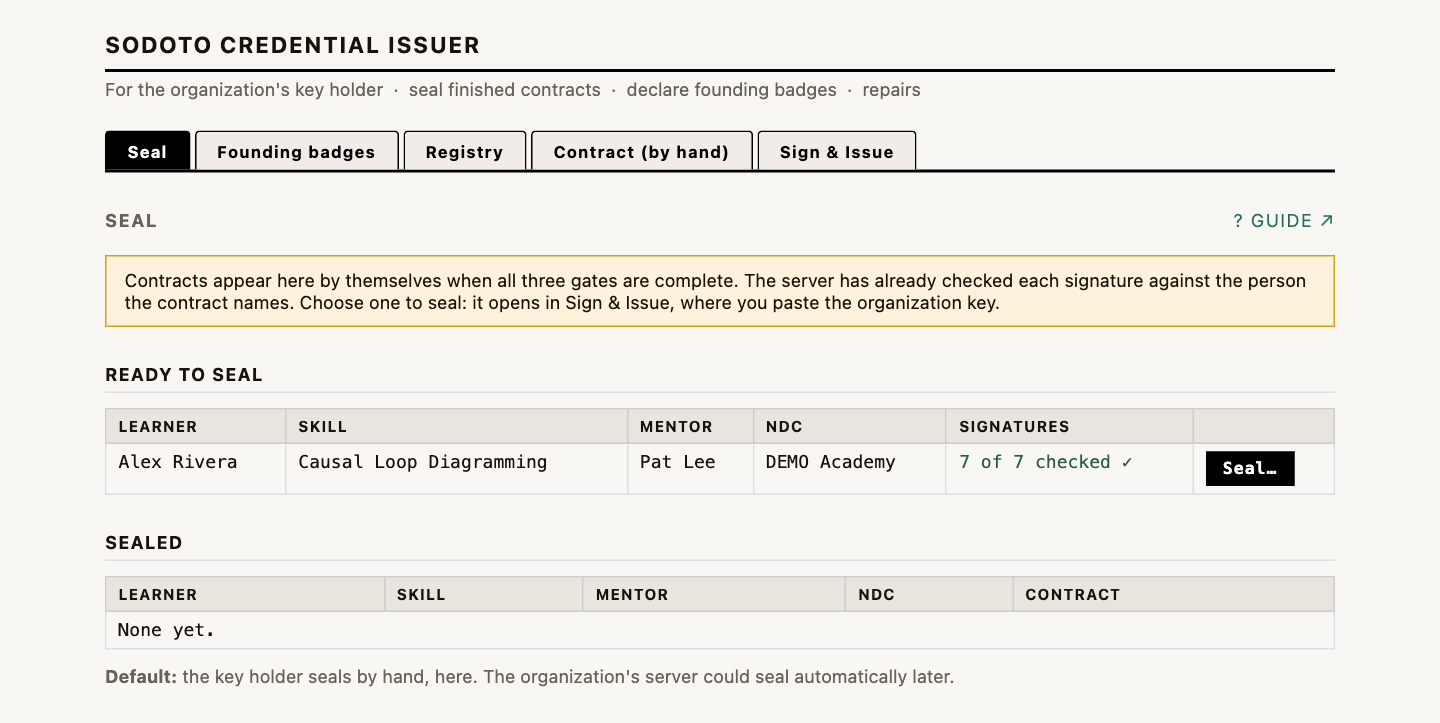
The Issuer opens on this tab. A contract appears under Ready to seal by itself when its third gate is signed — whether it was opened here or by a learner's request and a mentor's acceptance. The Signatures column is the server's own check of every signature against the person the contract names: 7 for a whole contract (mentor and learner at each gate, and the student at Teach One). Hover over a count below 7 to see which is missing.
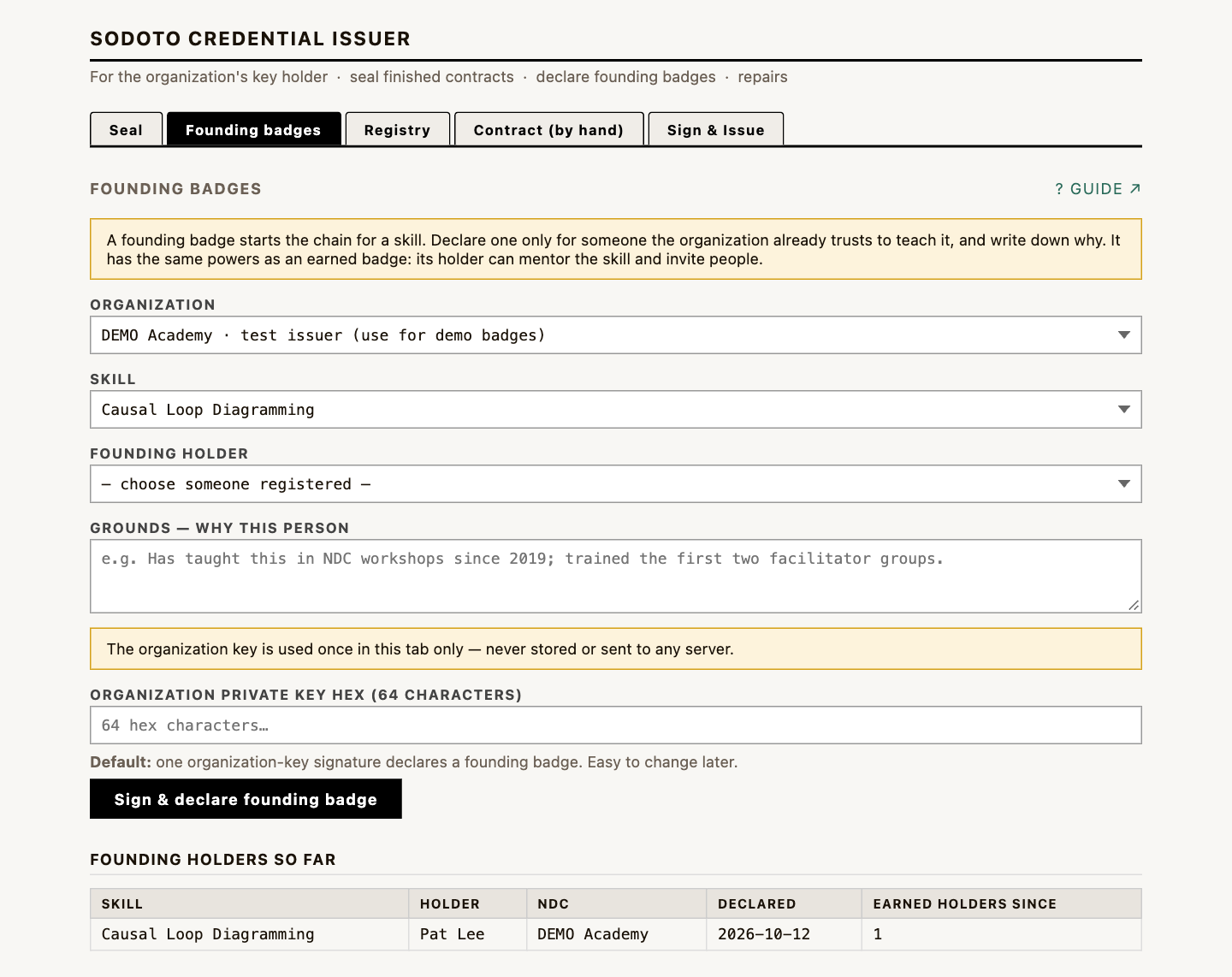
Nobody can earn a skill until someone already holds it. A founding badge is how an organization names a skill's first holders: people it already trusts to teach it. It has the same powers as an earned badge — its holder can mentor the skill, be asked or offer to mentor, and invite people.
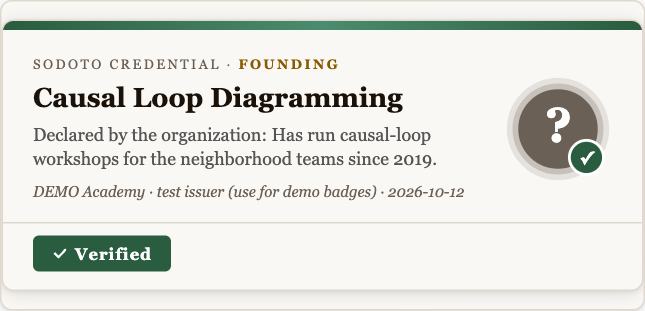
The badge goes straight onto the holder's portfolio, marked Founding, and the People page shows it. Anyone can click Verify on it: it checks the organization's signature, that it names this holder, and that it is a founding declaration. The table under the form lists the founding holders so far and how many people have earned the same skill from the same organization since — the chain each founding badge has started.
Once the gates are complete, this tab turns the contract into a signed badge.
Each completed gate needs the learner's own signature, the mentor's, and at Teach One the student's. Under Learner attestations there is a row for each. For gates the mentor recorded, the rows are already signed ✓ — the signatures came with the record. What follows is only for gates recorded in the Contract tab. Click Make signing link on a row: the link is copied, and a Waiting for your signature note appears at the top of that person's portfolio, so they find it where they already go. They sign on their own phone and send you back a block of text. Paste it into the row and click Attach. The issuer checks it is from the right person, for this gate, and unaltered; the row turns signed ✓ and the note comes off their portfolio.
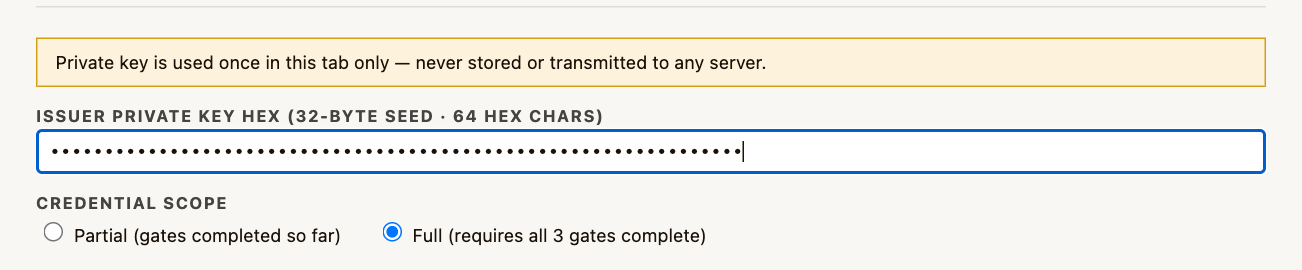
You review the credential, then paste the issuer's private key seed (a 64-character hex string). The badge is signed in your browser using that key — the key is never sent anywhere. The result is a signed JWT (JSON Web Token) embedded in the badge.
Signing writes the badge to the learner's portfolio page and adds a row to the rcn-sodoto-ledger.
On the portfolio, the badge renders with its seal, gate dates, and a Verify button that checks the
signature locally — proving the badge is genuine and unaltered, with no call back to any server.
DEMO — learners, and paste the DEMO Academy seed.
Nothing signed with real institutional keys should go on the pilot until it's secured — the demo prefix
keeps demo badges from ever being confused with real ones.Marc Pierson and Claude Opus 5.5 · September 2026, updated October 2026